
20 Meeting Reminder Templates for Email and Text (Copy and Paste)
Updated October 27, 2026

At a glance
A good meeting reminder says what the meeting is, when it starts, where to join and how to reschedule. Send an email the day before and a short text an hour or two before. Below are 20 templates you can copy, each with an email and a text version.
People rarely skip a meeting on purpose. They forget, or the invite sinks under a week of email, or the link is buried in a thread from last Tuesday. A short reminder at the right moment fixes all three, and it's the easiest way to stop losing hours to no-shows.
Every template here comes in 2 versions: an email with the full details, and a text short enough to read on a lock screen. Click Copy, swap the [brackets] for your details, and send. If you'd rather never send a reminder by hand again, the end of this post shows how to make them go out on their own. Reminding clients or patients instead? Use these appointment reminder templates.
Table of contents
What to put in a meeting reminder
A meeting reminder should answer 4 questions in a glance: what the meeting is, when it starts, where to go, and what to do if plans change. Put the meeting name and the time in the subject line, so the reminder does its job even if nobody opens it.
- A subject line that says it all. "Reminder: Budget review tomorrow at 2 PM" works from the inbox. "Quick question" or "Following up" makes people open the email to find out, and many won't.
- The day, the time and the time zone. Write "Tuesday at 2 PM ET", not "tomorrow afternoon". When people are in different time zones, give the time in theirs.
- Where to go. The video link, or the address with the room or the floor. Nobody should have to dig through last week's invite to find it.
- Why it matters. One line of agenda, or one thing to prepare. A reminder with a reason gets read; a bare "don't forget!" gets skimmed.
- A way to reschedule. A link to pick a new time turns a likely no-show into a new booking. It's the most useful line in the whole reminder. (If you're the one who needs to move it, here's how to reschedule a meeting politely.)
- Who it's from. This matters most for texts. Start with your name or your business, so the message doesn't look like spam.
Match the tone to the meeting
The same reminder can sound friendly to a coworker and pushy to a client. Pick the tone by who's on the other end:
| Who it's for | Tone | An opening line that fits |
|---|---|---|
| Your team | Casual and short | "Heads-up: we're meeting at 2 today." |
| A client or a prospect | Warm and professional | "I'm looking forward to our call tomorrow." |
| A senior leader or a board | Formal | "This is a reminder of Thursday's board meeting." |
| A job candidate | Friendly and clear | "We're looking forward to meeting you on Monday." |
When to send a meeting reminder
For most meetings, send an email reminder 1 day before and a short text 1 to 2 hours before. Add a reminder 1 week ahead for meetings booked far in advance, and a 15-minute nudge for video calls, when people need the link right away.
| Meeting | 1 week before | 1 day before | On the day |
|---|---|---|---|
| Video call with a client | – | Text 1 hour before | |
| In-person meeting | Email, if it was booked weeks ago | Email with the address | Text 2 to 3 hours before |
| Team or staff meeting | – | Message with the agenda | Chat message 15 minutes before |
| Job interview | – | Email with directions | Text 2 hours before |
| Board meeting | Email with the board pack | – | |
| Webinar or online event | Email or text 1 hour before | ||
| Early-morning meeting | – | Email, and a text the evening before | – |
2 reminders work better than 1, and 3 is plenty. More than that starts to feel like nagging. Each reminder should also add something new: the 1-week email confirms the date, the 1-day email brings the agenda, and the text brings the link.
Use email for the details and a text for the nudge. People skim their inbox, but a text lands on the lock screen, minutes before they head out the door. Keep a text under 160 characters, so it arrives as 1 message, and leave out emoji: a single emoji drops the limit to 70 characters.
Short and general meeting reminders
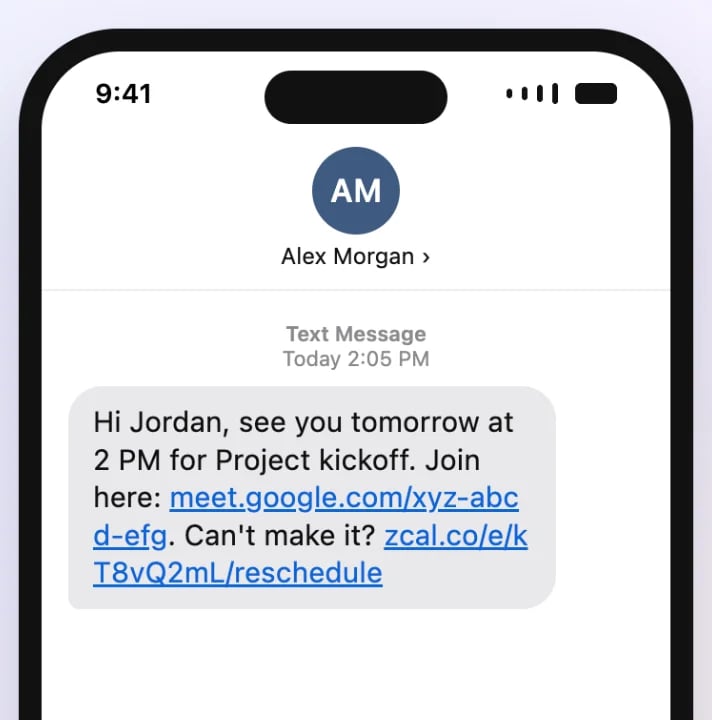
Each template below has an email version and a text version. The texts stay under 160 characters once you fill them in with short details, so each one goes out as a single message. They use only plain characters for the same reason.
1. Short and friendly reminder
Use it for most meetings with people you already know.
Subject: Quick reminder: [meeting] on [day] at [time]
Hi [first name],

Just a quick reminder that we're meeting on [day] at [time] [time zone]. Here's the link to join: [video link]

See you then!
[your name]
Hi [first name], quick reminder: [meeting] is on [day] at [time]. Join here: [video link]. See you then! - [your name]
2. Formal or professional reminder
Use it for clients, senior leaders and anyone you're meeting for the first time.
Subject: Reminder: [meeting] on [date] at [time] [time zone]
Dear [first name],

This is a reminder of our meeting on [date] at [time] [time zone].

Topic: [meeting]
Where: [address or video link]
Length: [30 minutes]

If you need to change the time, you can choose a new one here: [reschedule link]. I look forward to speaking with you.

Kind regards,
[your name]
[title], [company]
Hello [first name], this is [your name] from [company]. A reminder of our meeting on [date] at [time]. To reschedule: [reschedule link]
3. Casual reminder for coworkers
Use it for a quick sync with your own team.
Subject: [meeting] at [time] today
Hey [first name],

Heads-up that [meeting] is at [time] today. Bring [one thing to prepare], and we'll be done in [20] minutes.

Link: [video link]

[your name]
Hey [first name], [meeting] is at [time] today. Bring [one thing to prepare]. Link: [video link]
Reminders for a meeting next week, tomorrow, tonight or in 15 minutes
4. One week before
Use it for meetings that were booked weeks ago, when plans may have changed.
Subject: Save the date: [meeting] on [date]
Hi [first name],

[meeting] is one week away, on [date] at [time] [time zone].

If anything has changed on your side, now is the easiest time to move it: [reschedule link]. I'll send the agenda a day before.

Best,
[your name]
Hi [first name], [meeting] is one week from today: [date] at [time]. Need a new time? [reschedule link] - [your name]
5. Meeting tomorrow
The reminder most people should send. It goes out 24 hours before, while there's still time to prepare or to reschedule.
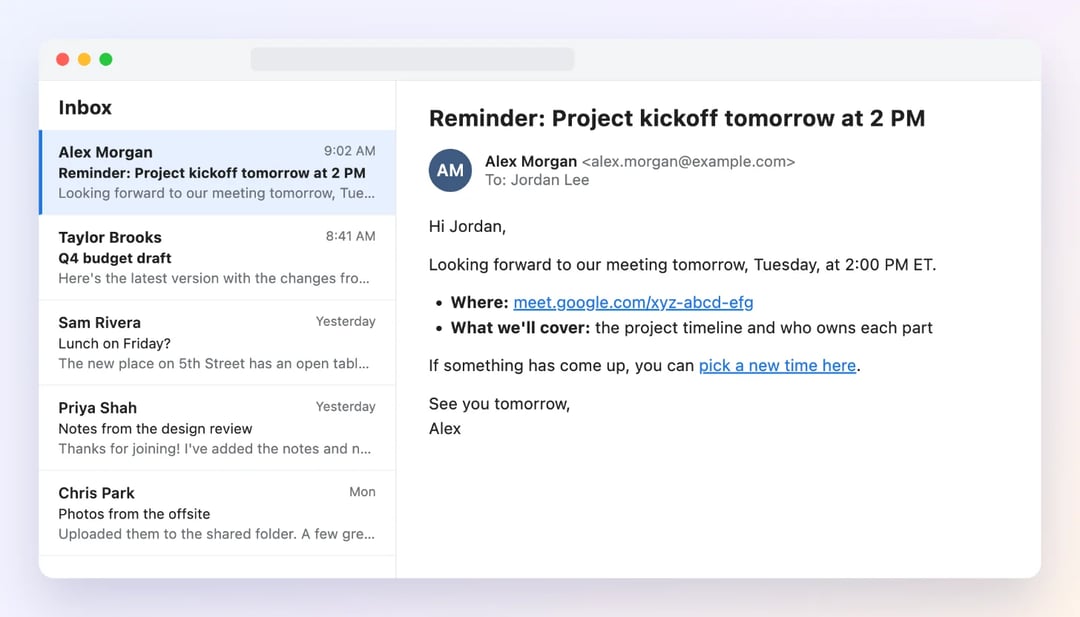
Subject: Reminder: [meeting] tomorrow at [time]
Hi [first name],

Looking forward to our meeting tomorrow, [day], at [time] [time zone].

Where: [address or video link]
What we'll cover: [one line of agenda]

If something has come up, you can pick a new time here: [reschedule link].

See you tomorrow,
[your name]
Hi [first name], see you tomorrow at [time] for [meeting]. Join here: [video link]. Can't make it? [reschedule link]
6. Meeting today or tonight
Send it the morning of the meeting. For an evening meeting, send it in the early afternoon, before people make other plans.
Subject: Today at [time]: [meeting]
Hi [first name],

A quick reminder that we're meeting today at [time] [time zone], at [address or video link].

If your day has changed, let me know, or pick a new time here: [reschedule link].

See you later,
[your name]
Hi [first name], reminder: [meeting] is tonight at [time] at [address]. See you there! - [your name]
7. Starting in 15 minutes
Use it for video calls. It saves people from digging for the link at the last minute.
Subject: Starting in 15 minutes: [meeting]
Hi [first name],

We start in 15 minutes. Here's the link again, so you don't have to look for it: [video link]

See you in a few,
[your name]
[meeting] starts in 15 minutes. Join here: [video link] - [your name]
Reminders for each type of meeting
8. Team or staff meeting
A staff meeting reminder works best with the agenda in it, so people come with their updates ready.
Subject: Staff meeting: [day] at [time], [room or video link]
Hi team,

A reminder that our [weekly] staff meeting is on [day] at [time] in [room or video link].

On the agenda:
1. [topic]
2. [topic]
3. [topic]

Please add your updates to [shared doc] before we start, so we can keep it to [30] minutes.

Thanks,
[your name]
Team: staff meeting on [day] at [time] in [room]. Please add your updates to [doc] before we start. Thanks! - [your name]
9. One-on-one meeting
Make it about them: a 1:1 reminder that asks for their topics gets a better meeting.
Subject: Our 1:1 on [day] at [time]
Hi [first name],

Our 1:1 is on [day] at [time]. This is your time, so add anything you'd like to talk about to [doc link], and we'll start there.

See you then,
[your name]
Hi [first name], our 1:1 is on [day] at [time]. Add anything you want to cover to [doc link]. - [your name]
10. Client meeting
Tell the client what they'll get out of the meeting, and make it easy to move if their plans change.
Subject: Looking forward to our meeting on [day] at [time]
Hi [first name],

I'm looking forward to our meeting on [day] at [time] [time zone]. I'll [walk you through the first draft], and we'll leave time for your questions. If you can, please bring [anything you need from them].

Where: [address or video link]

If your plans change, you can choose a new time here: [reschedule link].

Best regards,
[your name]
Hi [first name], it's [your name] from [company]. See you [day] at [time]: [video link]. Need a new time? [reschedule link]
11. Sales demo
Remind the prospect why they booked: name the problem they told you about, not just the product.
Subject: Your [product] demo on [day] at [time]
Hi [first name],

Your demo of [product] is on [day] at [time] [time zone]. In [30] minutes, I'll show you how [product] can [solve the problem they mentioned], and we'll leave time for your questions.

Feel free to invite anyone else who should see it.

Join here: [video link]
Need another time? [reschedule link]

Talk soon,
[your name]
Hi [first name], your [product] demo is on [day] at [time]. Join: [video link]. Need another time? [reschedule link] - [your name]
12. Job interview
A candidate is nervous enough already. Tell them who they'll meet, where to go and what to bring. For the first message, use these interview invitation email templates.
Subject: Interview reminder: [role] at [company], [day] at [time]
Hi [first name],

We're looking forward to your interview for the [role] position on [day] at [time] [time zone].

You'll meet: [names and job titles]
Where: [address and where to check in, or video link]
How long: [45 minutes]
What to bring: [portfolio, ID, or nothing at all]

If you have any questions before then, just reply to this email.

Best of luck,
[your name]
Hi [first name], a reminder that your interview for [role] at [company] is on [day] at [time], at [address]. - [your name]
13. Board meeting
A board meeting reminder needs the materials early and a clear way to send apologies, so you know you'll have a quorum.
Subject: Board meeting on [date]: agenda and board pack
Dear [first name],

This is a reminder that the [quarter] board meeting is on [date] at [time] [time zone], at [address or video link].

The agenda and the board pack are here: [link]. Please read them before the meeting. If you can't attend, please let me know by [date].

Kind regards,
[your name]
[title]
Reminder: [organization] board meeting on [date] at [time], [place]. Board pack: [link]. Please reply if you can't attend.
14. Webinar or online event
Put the join link right at the top. For an event, that's the only thing most people need.
Subject: [event] starts [tomorrow] at [time] [time zone]
Hi [first name],

You're registered for [event] on [day] at [time] [time zone]. Here's your link to join: [link]

Can't make it live? [We'll send the recording to everyone who registered.]

See you there,
[your name]
Hi [first name], [event] starts today at [time] [time zone]. Your link to join: [link]. See you there!
15. In-person meeting
Give the details people need on the way: the address, the entrance, and where to park.
Subject: See you at [place] on [day]
Hi [first name],

A reminder that we're meeting in person on [day] at [time], at:

[address]

[Check in at the front desk on the 2nd floor. Visitor parking is behind the building.]

My cell is [phone number], in case you're running late.

See you there,
[your name]
Hi [first name], see you on [day] at [time] at [address]. [Parking tip]. Running late? Text me here. - [your name]
16. Weekly or recurring meeting
People stop reading a reminder that's the same every week. Name the one thing that's new this time.
Subject: This week's [meeting]: [topic]
Hi team,

[meeting] is on [day] at [time], as usual. This week, we'll focus on [the one topic that matters most]. [Name], could you start us off with [update]?

Link: [video link]

Thanks,
[your name]
[meeting] is at [time] today. This week: [topic]. Link: [video link]
Reminders to confirm, nudge and follow up
17. Ask them to confirm
Use it when a no-show would cost you, for example a long client session or a meeting with travel. To confirm a booking the moment it's made, send an appointment confirmation instead.
Subject: Can you confirm [day] at [time]?
Hi [first name],

We're set to meet on [day] at [time] [time zone]. Could you reply "Yes" to confirm that the time still works?

If it doesn't, no problem. You can pick a new time here: [reschedule link].

Thanks,
[your name]
Hi [first name], are we still on for [day] at [time]? Reply YES to confirm, or pick a new time: [reschedule link] - [your name]
18. Agenda and preparation
Send it 1 or 2 days before a working session, so people have time to do the reading.
Subject: Before our meeting on [day]: agenda and prep
Hi [first name],

Ahead of [meeting] on [day] at [time], here's the plan:
1. [agenda item] ([10] minutes)
2. [agenda item] ([15] minutes)
3. Next steps ([5] minutes)

To make the most of our time, please [read the doc or bring your numbers]: [link]

Thanks,
[your name]
Hi [first name], before [meeting] on [day], please [read the doc]: [link]. Thanks! - [your name]
19. Gentle reminder when they haven't replied
A gentle reminder email works best when it's short and assumes the best: they're busy, not ignoring you.
Subject: Gentle reminder: [meeting] on [day]
Hi [first name],

I know your week is busy, so this is just a gentle reminder about [meeting] on [day] at [time]. I haven't seen a reply to the invite yet. Does the time still work for you?

If not, here's a link to pick another one: [reschedule link].

Thanks,
[your name]
Hi [first name], a gentle reminder about [meeting] on [day] at [time]. Still good for you? If not: [reschedule link]
20. After a missed meeting
Keep it kind. Most no-shows are an honest mistake, and a friendly note with a booking link brings many of them back. If you charge for missed appointments, say so up front in a clear cancellation policy, not after the fact.
Subject: Sorry we missed you today
Hi [first name],

We were set to meet at [time] today, but I didn't see you join. No worries, things come up.

If you'd still like to talk, you can pick a new time here: [booking link].

Best,
[your name]
Hi [first name], sorry we missed you at [time] today. Want to pick a new time? [booking link] - [your name]
How to schedule a reminder email or text
You can write a reminder now and have it go out later, so you don't have to remember to send it.
In Gmail
- Write your email.
- Next to Send, click the down arrow.
- Click Schedule send, and pick a time or Pick date & time.
Gmail keeps the email in the Scheduled folder until it goes out, and you can have up to 100 scheduled emails.
In Outlook
In the new Outlook and Outlook on the web, click the arrow next to Send, choose Schedule send, and pick a time. The email waits in Drafts until then.
In classic Outlook for Windows, click the small Message Options arrow in the Tags group, check Do not deliver before, and set the date and time. Click Close, then Send. Classic Outlook only sends it if it's open and online at that time.
On an iPhone
- Open the conversation in Messages.
- Tap +, then Send Later.
- Tap the time, and choose when to send.
- Type your text and tap the send button.
Send Later works with iMessage only, up to 14 days ahead, so the person you text needs an Apple device.
On an Android phone
- In Google Messages, open the conversation and type your text.
- Touch and hold the Send button.
- Pick one of the suggested times, or choose your own date and time.
Scheduling works for one meeting. If you book meetings every week, you'll soon forget one, and a scheduling app that sends the reminders for you is the better fix.
Send these automatically with zcal
The best reminder is the one you never have to remember to send. zcal is a free scheduling app that sends them for you: people pick a time on your booking page, and every meeting they book gets its reminder, right on time.
- On the free plan, each booking gets an automatic reminder email, 1 day before by default. It has the meeting name, the time in the guest's own time zone, the place or the video link, and links to reschedule or cancel.
- On Pro, from $7 a month, you can send up to 5 email reminders for each meeting, write them in your own words, and add a text reminder. Your guest's first name, the meeting, the time and the links fill in on their own for every booking.
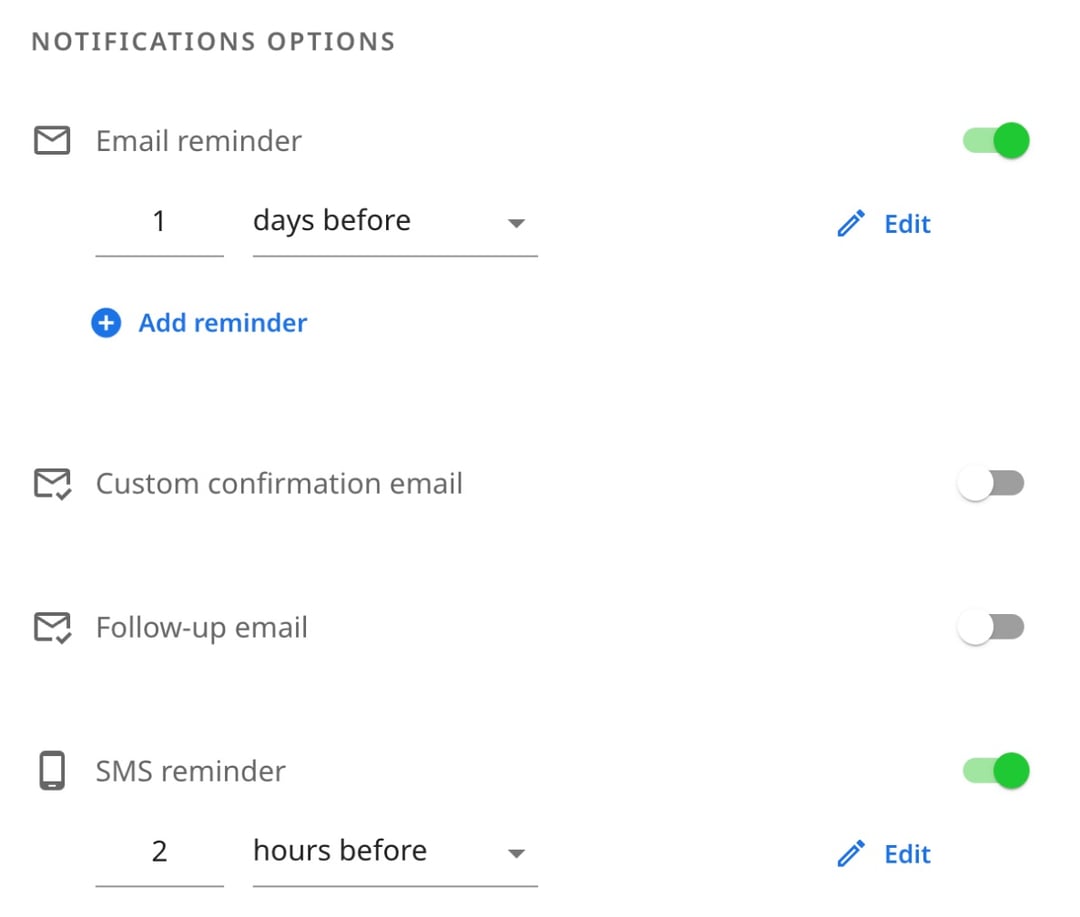
The reminders also keep up with changes. If someone moves the meeting, the reminder follows the new time. If they cancel, no reminder goes out. You set it up once, and you never send a "just a reminder" email by hand again.
Try zcal free, or see how text reminders cut no-shows. A reminder works best after a clear invitation, so start with these meeting invitation templates.
Frequently asked questions
How do I send a reminder email?
How do I send a reminder text?
How do I write a gentle reminder email?
Is "friendly reminder" passive-aggressive?
How far in advance should I send a meeting reminder?
Does zcal send meeting reminders automatically?
How do I set a meeting reminder in Outlook?
Related Articles
There's a better way to schedule meetings
Join zcal freeWant unlimited booking links, polls and reminders for free?
Try zcal free